Replacement Donation Receipts
If you need to print another Donation Receipts for a contributor for
tax purposes, then you do need to know what the original receipt number
was and you’ll need to know the contributor’s envelope number as well.
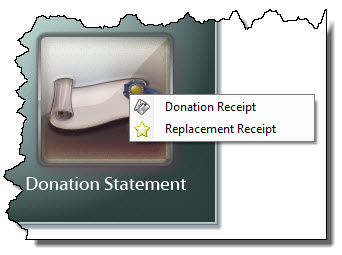
To create the replacement donation receipt, open the Donations Module and go to Reports / Export and click Donation Statement. Then click the Replacement Receipt button (will appear for Canada users only):
The Step 1 window will appear:
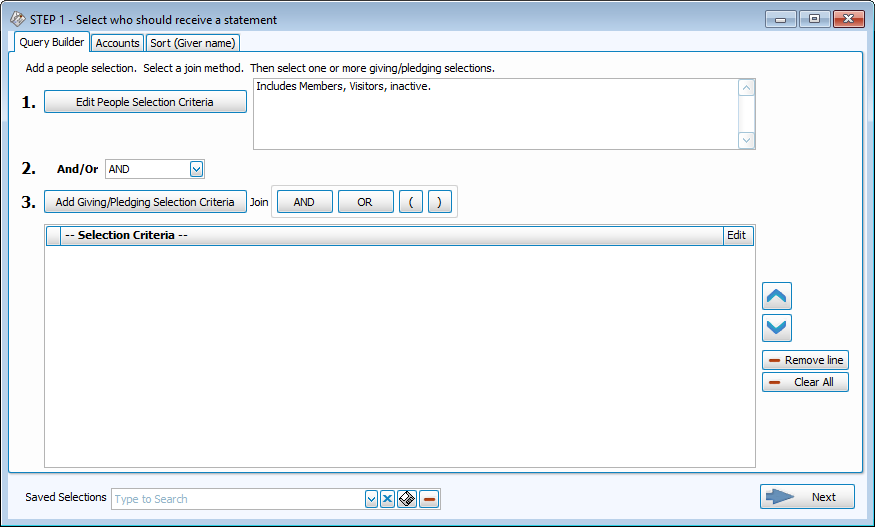
- Enter the applicable selections and Date Range on the Giving / Pledging Tab.
- Select the Giver using the features on theGivers / People Tab of the screen. Continue to use the other features and tabs you need for the receipts you want to print. (See Donation Statements for further information).
- Click → Next to move on to Step 2 — Select the report layout/format:
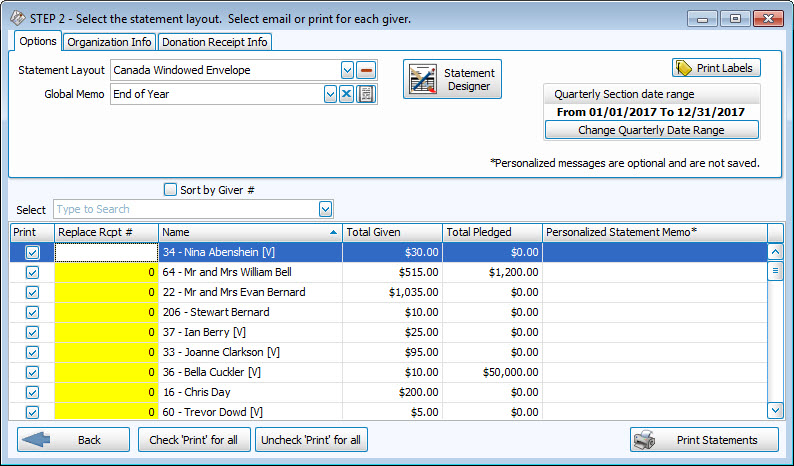
- Only the Giver needing a replacement receipt should be selected.
- Enter the original receipt number into the column titled Replace Rcpt #:.
- Click Print Statements. The new receipt will compile on the Print Preview screen. There will be a message on the receipt that states "the next receipt number cancels and replaces receipt # the number in the Replace Rcpt # field."
- Verify that the receipt numbers are correct. Close the Print Preview screen if you need to make corrections, and click Print Statements again to view them. When you are ready, click the Print button to send this receipt to the printer. The system will tell you the Donation Receipt #s that were printed. Check the receipt when it comes out of the printer and confirm that this is the correct new receipt number.
- Click OK to make the message disappear.
If the receipt numbers still print out incorrectly, please contact our Technical Support staff at 800.533.5227 or support@churchwindows.com (be sure to add this address to your email contacts list to ensure delivery) or visit the Support Center on our website for additional training materials..
